

 How to Tell if That Microsoft Security Alert is Real or Fake
 How to Tell if That Microsoft Security Alert is Real or Fake
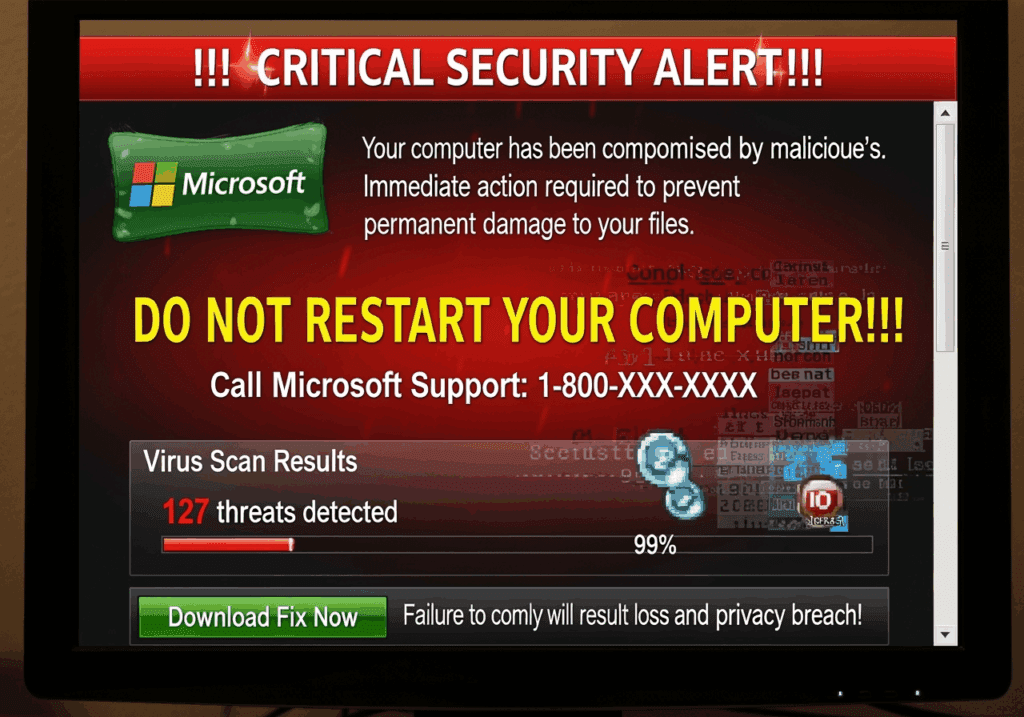
You’re browsing the web when suddenly a loud alarm blares from your computer. A window pops up claiming to be from Microsoft, warning that your computer is infected with viruses and demanding immediate action. Your heart races – is this real?
Take a deep breath. What you’re seeing is almost certainly a fake Microsoft security alert, and you’re not alone. These Microsoft scam popups trick thousands of people every day, especially targeting seniors who want to keep their computers safe.
The good news? Once you know what to look for, spotting these fake virus warnings becomes as easy as counting to five.
The 5-Second Scam Spotting Checklist
When any security alert appears on your screen, use this simple checklist to determine if it’s legitimate:
1. Does it create urgency? Real Microsoft alerts are calm and informative. Fake ones scream “IMMEDIATE ACTION REQUIRED!” or “YOUR COMPUTER WILL BE DISABLED IN 5 MINUTES!”
2. Is the grammar poor? Microsoft employs professional writers. Look for spelling mistakes, awkward phrasing, or sentences that don’t sound quite right.
3. Does it request remote access? Legitimate Microsoft alerts never ask you to call a phone number or allow someone to remotely control your computer. This is the biggest red flag.
4. Are there threats or scare tactics? Real alerts explain problems calmly. Fake ones threaten to “permanently damage your files” or claim “hackers are accessing your personal information RIGHT NOW!”
5. Does it look unprofessional? Microsoft’s real alerts use consistent fonts, proper logos, and clean design. Fake ones often look rushed or use unofficial colors and layouts.
If any of these warning signs appear, you’re looking at a Microsoft support scam. Close it immediately and move on with your day.
What Real Microsoft Alerts Actually Look Like
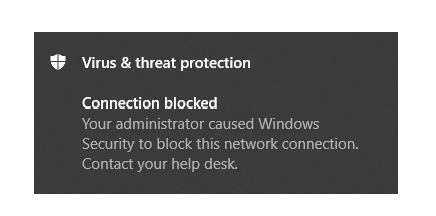
Real Microsoft security alerts are subdued
Microsoft security notifications are surprisingly rare and always appear in specific places:
Windows Security Center notifications appear in the bottom-right corner of your screen as small, temporary pop-ups. They use Microsoft’s standard blue color scheme and never include phone numbers or demands for immediate action.
Windows Update notifications appear as small icons in your system tray or as brief pop-ups asking if you’d like to restart to install updates. They never claim your computer is infected.
Microsoft Defender alerts (if you use Windows’ built-in antivirus) appear as small notifications that calmly inform you about potential threats. They provide clear options like “Remove threat” or “Allow on device” – never phone numbers to call.
Real Microsoft alerts also never:
- Play audio alarms or warning sounds
- Prevent you from closing the window
- Ask for credit card information
- Request remote access to your computer
- Demand immediate phone calls to “tech support”
Common Fake Alert Warning Signs
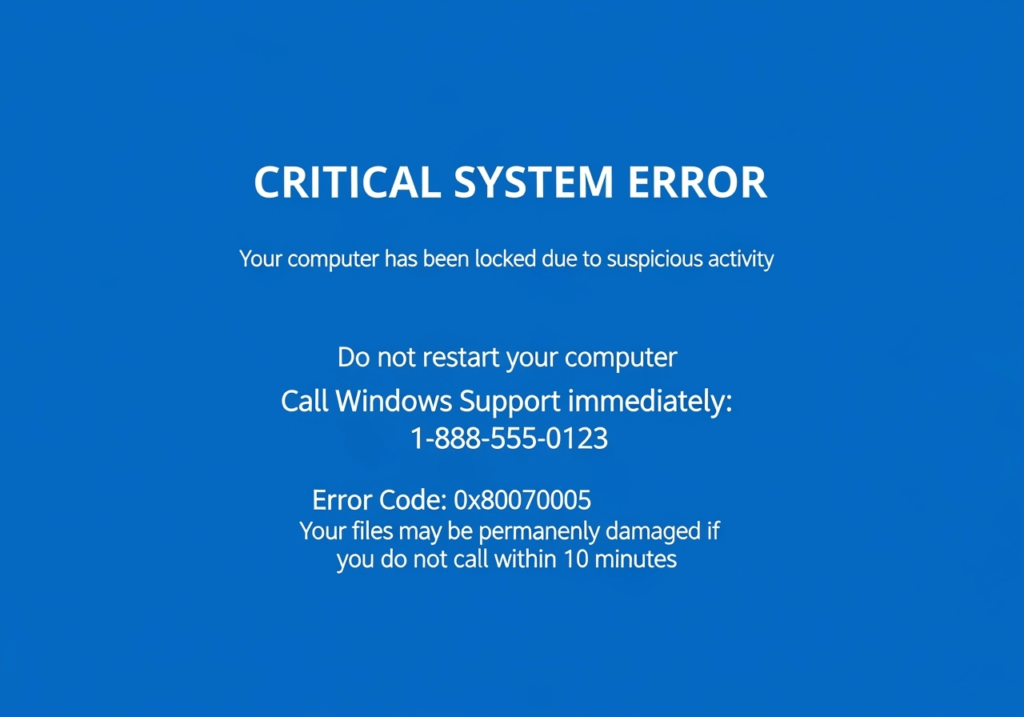 Scammers have become sophisticated, but they still rely on the same psychological tricks. Here’s what to watch for:
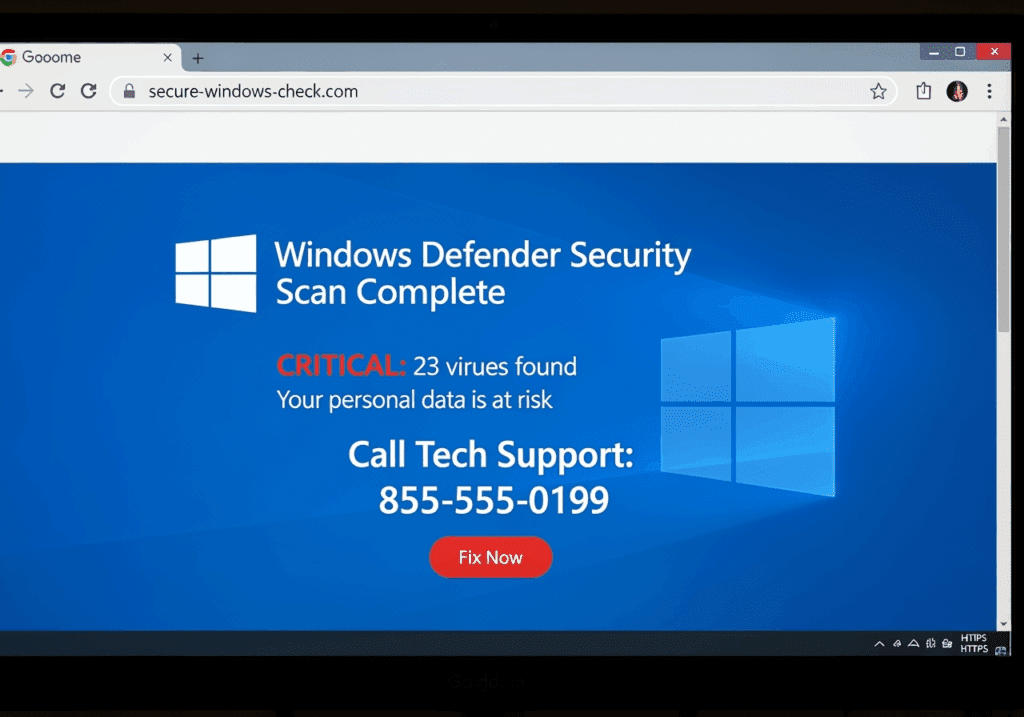
Fake Browser Alerts These appear as web pages designed to look like Windows system warnings. They often include:
- Flashing red text and warning symbols
- Claims that “Windows has detected suspicious activity”
- Fake virus scan results showing dozens of infections
- Phone numbers prominently displayed for “immediate help”
Audio Warnings Many fake alerts now include computer-generated voice warnings saying things like “Your computer has been compromised” or “Do not restart your computer.” Real Microsoft alerts are always silent.
Fake Blue Screen Warnings Some scammers create fake “Blue Screen of Death” pages that aren’t actually system crashes. Real blue screens don’t include phone numbers or ask you to call anyone.
Pop-up Loops Legitimate alerts can always be closed. If clicking the X button doesn’t work, or if new pop-ups keep appearing, you’re dealing with a scam.
What Scammers Do Once They Have Your Attention
Understanding the scammer’s playbook helps you recognize these schemes faster:
Step 1: Create Fear They convince you that your computer is severely infected and at immediate risk. The urgency prevents you from thinking clearly.
Step 2: Offer a Solution They provide a phone number for “Microsoft certified technicians” who can “fix the problem immediately.”
Step 3: Gain Access Once you call, they’ll ask you to download remote access software so they can “diagnose the problem.” This gives them complete control of your computer.
Step 4: Create False Evidence They’ll show you normal system files and claim they’re viruses, or run fake scans that “discover” hundreds of infections.
Step 5: Demand Payment Finally, they’ll offer to “clean” your computer for anywhere from $200 to $500, often demanding gift cards or wire transfers.
Step 6: Ongoing Exploitation Even after payment, they may continue calling, claiming new problems exist, or use the access they gained to steal personal information.
How to Close Fake Alerts Safely
When you encounter a fake Microsoft security alert, here’s exactly what to do:
For Pop-up Windows:
- Don’t click anywhere inside the pop-up window
- Press Alt + F4 to force-close the window
- If that doesn’t work, press Ctrl + Alt + Delete and select Task Manager
- Find your web browser in the list and click “End Task”
For Full-Screen Alerts:
- Press the Windows key to access your Start menu
- Click the power icon and select “Restart”
- When your computer restarts, don’t restore your previous browser session
Never:
- Call any phone numbers shown in the alert
- Download software the alert recommends
- Enter personal information or credit card details
- Allow remote access to your computer
After Closing the Alert: Run a scan with your legitimate antivirus software to ensure your computer is actually clean. Most of the time, these fake alerts appear on perfectly healthy computers.
Protect Yourself With Professional Monitoring
While knowing how to spot fake alerts is valuable, wouldn’t it be better if they never appeared in the first place?
Professional monitoring services can block these scam websites before they reach your screen. Instead of relying on your ability to spot fakes under pressure, advanced filtering prevents fake Microsoft security alerts from appearing at all.
This protection works by:
- Maintaining updated databases of known scam websites
- Blocking access to suspicious domains in real-time
- Preventing remote access tools from being downloaded
- Providing immediate expert support when questions arise
For seniors and anyone who wants peace of mind, professional monitoring eliminates the guesswork. You can browse the web confidently, knowing that fake alerts simply can’t reach you.
Many clients tell us that this protection has transformed their computer experience from stressful to enjoyable. Instead of second-guessing every pop-up, they can focus on staying connected with family, managing finances, and enjoying their digital life.
Remember: Real Microsoft alerts are rare, calm, and never demand phone calls. When in doubt, close the alert and contact a trusted local tech professional. Your computer’s security is important, but it’s never an emergency that requires immediate action from strangers on the phone.
About Tony Whitney & Y-Not Tech Services

 Protecting Lethbridge Families from Tech Scams Since 2016
As a locally-owned computer repair service right here in Lethbridge, I’ve seen firsthand how these fake Microsoft alerts target our community – especially our seniors. From Coaldale to Picture Butte, from the Northside to West Lethbridge, I’ve helped countless families recover from these scams and, more importantly, prevent them from happening again.
At Y-Not Tech Services, we believe technology should give you freedom, not fear. That’s why I’ve made scam prevention education a cornerstone of our Gold Plus service – because nobody in southern Alberta should have to worry about whether that scary pop-up is real or fake.
Local. Trusted. Proven.
When you work with Y-Not Tech Services, you’re not just getting technical expertise – you’re getting a neighbour who genuinely cares about keeping your family safe online. I explain everything in plain English, never use confusing tech jargon, and I’m always just a phone call away when you need help.
Serving Lethbridge, Coaldale, Coalhurst, Picture Butte, and surrounding communities with honest, reliable computer repair and IT support.
Ready to browse worry-free? Call (403) 915-8574 or visit ynottechservices.com to learn how our Gold Plus monitoring service blocks these scams before they ever reach your screen.