
Over the past several weeks our Tech Tips Thursday’s have focused on shortcuts. That series wraps up over on Facebook later this week. If you haven’t yet, follow us over there. This post will serve as a summary and expansion for Keyboard Shortcuts. We’ll review the ones we covered and I’ll point you in the direction of some new ones to try out.
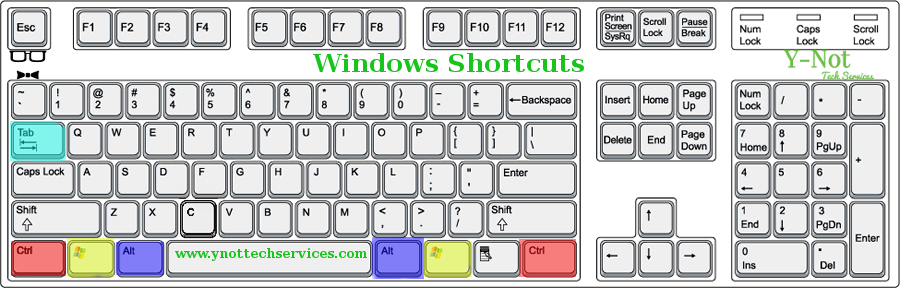
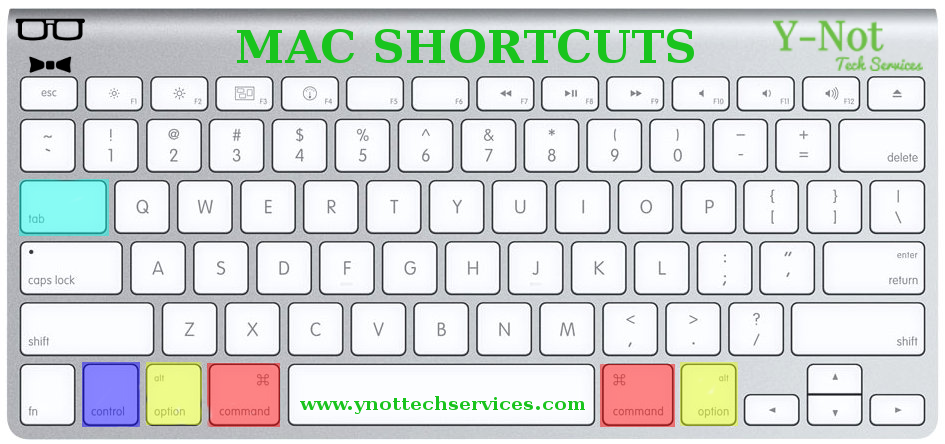
First I should explain that, while, for simplicity’s sake, I only referred to text in the Facebook posts, but almost all of those commands can also be used for files on your computer. I’ll show you a bit about that as well.
To use a shortcut press and hold the first button in the combination, then press the second while still holding the first button. If there are three buttons in the shortcut, you must hold both the first and second buttons while pressing the last one. For example if the shortcut is Ctrl + V, you would press and hold Ctrl then press V. For the shortcut Ctrl + Alt + Delete you would press and hold Ctrl, press and hold Alt while still holding Ctrl and finally press Delete while still holding both Ctrl and Alt. Some shortcuts can be activated by hitting the buttons simultaneously, but it’s simpler to just do them in sequence.
Cut, Copy, Paste and Select All
Moving text around is a breeze when you remember these shortcuts. Whether it’s copying and pasting an e-mail address to send a message or cutting and pasting text to better organize your thoughts in a Word Processor, it’s simple to do with these shortcuts:
| Windows | Mac | Detailed Explanation | |
| Cut | Ctrl + X | Command + X | Removes Selected Items and moves them to the Clipboard |
| Copy | Ctrl + C | Command + C | Copies the selected items and moves them to the clipboard, while leaving the original in place. |
| Paste | Ctrl + V | Command + V | Pastes all items on the clipboard to the selected location |
These shortcuts are also extremely useful when organizing your files. In Windows Explorer or Mac’s Finder, you can use these same shortcuts to move files around between folders or even different drives connected to the computer. For example, everything you download from the internet might automatically be saved to a ‘Downloads’ folder. If you wanted to organize this so it was a easier to find things you could create folders (Bonus Shortcut! Ctrl + N | Command + N!!?) within the ‘Downloads’ Folder. You can create different folders for different types of files and use the shortcuts we have learned to Cut the files from the ‘Downloads’ folder and then Paste them into specific folders so you can find them later and avoid clutter. The Copy shortcut comes into play with files mostly when you want something on your Computer to also be on another drive (like for a back up). Again, Copy works the same as Cut, but it leaves the file in the original location as well as adds a copy where ever you Paste it. Select All (Ctrl + A | Command + A) also works for files. Want to Copy all the files within a folder? No need to waste time doing it one at a time! Simply hit your handy shortcut for Select all.
Application Switching and Show Desktop
Probably one of my most used short cuts and one of my least used. I often have multiple applications open. If I’m working I might have a virus scan running on a client’s hard drive, my ticketing and Invoice software, a web browser, and a music application all running and probably more than that if I’m not working with YouTube, Netflix and games added to the list. The quickest way to move among these applications is Alt + Tab on Windows and Command + Tab on MacOS. This is great for switching back and forth between your web browser and a Word Processor for example to write about a subject you’re researching. Or just switching between Facebook and a music player to skip a song you’re not feeling. The uses are myriad, and can it can save almost everyone a lot of time.
| Windows | Mac | Detailed Explanation | |
| Switch Applications | Alt + Tab | Command + Tab | Switches between open applications |
| Show Desktop | Windows Key + D | F11 or Fn + F11 | Minimizes open windows and displays the desktop |
I can’t say I use show desktop very often. I like to keep a fairly clean desktop, with all my most used application and files either on my taskbar or in my start menu, so heading to the desktop isn’t high on my list. However, I see many people store their most used files and programs directly on the Desktop. If you are one of these people, hitting Windows Key + D will get you straight to all of your files.
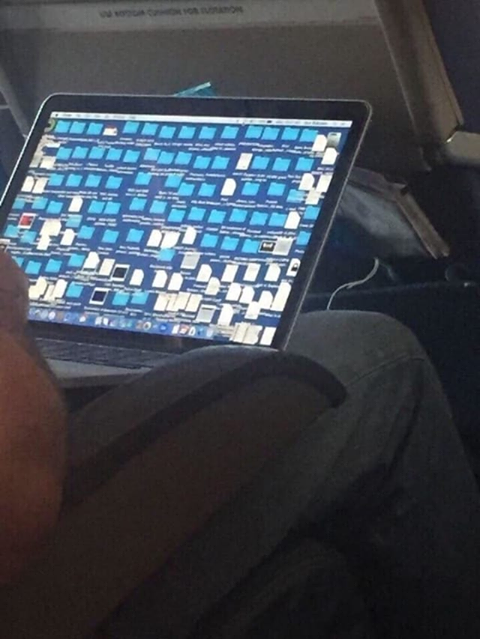
Please don’t let you desktop look like THIS though! How do they find anything?
Undo and Redo
Making mistakes can be annoying and time consuming. However, with the Undo short cut, you can get back on track quickly and easily. This shortcut can be used in many different situations and applications around your computer. It can be used to quickly undo the results of using of the other shortcuts, like paste. If you pasted something in the wrong place and need to get rid of it again, simply use the undo shortcut. Deleted a file you need? Undo. Erased half the picture you are editing? Undo. Play around with this one. You might be surprised how many places it works! Just make sure to have the Redo shortcut handy in case it has an effect you didn’t expect.
| Windows | Mac | Detailed Explanation | |
| Undo | Ctrl + Z | Command + Z | Reverses the last action taken. |
| Redo | Ctrl + Y | Command + Shift + Z | Resets to before Undo was done |

Remember the Undo command and you’ll never need to reach for the white out again!
If you can remember to use these shortcuts, they can be a real time saver for you. It Is much more time consuming to go through and undo the mistake manually. Two key presses can get you back to work almost instantly. And if once you Undo something it doesn’t look any better, or you change your mind, Redo is there to undo the undo. Sometimes when I working with images I’ll end up using the Undo shortcut repeatedly. I’ll change a lot of different things while trying to make it look the way I want only for it to look bad. So I just spam the Undo Shortcut until all the changes I made are reversed and I can start over trying something else.
Open New Tab
My wife is always making fun of me for having about 100 Internet Browser Tabs open at once. I guess I might over use this shortcut. There are many things I do in a web browser. E-Mail, Netflix, Youtube, Facebook, Twitter, a few different discussion forums, working on my webpage and so on. If my browser was a desktop it would look the one above. I’m sure you have a different list, but that you still have a reason to open more than one tab at a time. Modern Web browsers like Chrome, Firefox, Safari and even Microsoft Edge make it easy to get new tabs open. It just takes a keyboard shortcut. On windows systems Ctrl + T will open up a new tab and for Safari on a Mac you can use Command + T. As an added bonus, when you open a new tab this way, the address box will take focus so you can immediately start typing the address of the webpage you want to visit, or your search terms for the search engine set to run in your browser.
Barely Scratched the Surface
Hopefully the shortcuts I have explained here are helpful. There’s a good chance you already knew and used some of them. That’s great! There are many other Shortcuts available. Windows and MacOS have more shortcuts ready to use, but so do almost all of your favorite applications and programs. If you use a program regularly, why not have a look around and see if there are shortcuts for your most used actions. You might find these listed in the menus next to where or hidden away in a help file. Either way, taking the time to learn them could save more time in the future and make your workflow simpler.
If you enjoyed this lesson on Keyboard Shortcuts, be sure to follow me on Facebook and consider contacting me for one on one training on the subject of your choice. You can book an appointment below:

I’ll leave you with a link to Shortcuts for Windows and then one for Mac.
Windows Shortcuts:
You can find a huge list of shortcuts for windows here:
https://www.winhelponline.com/blog/master-list-keyboard-shortcuts-windows-10
Mac Shortcuts
A Big list of MacOS shortcuts can be found here: https://www.danrodney.com/mac