

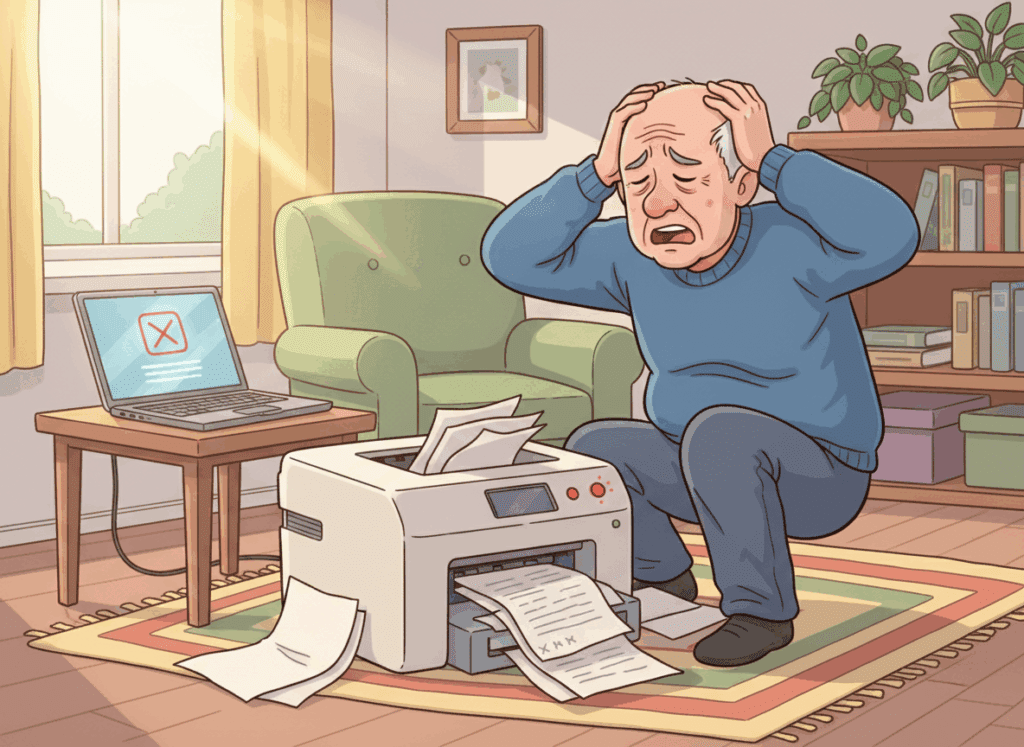
 Few things are more frustrating than hitting “Print” and… nothing happens. No noise, no paper, no error message that makes any sense.
If you live in Lethbridge and your printer refuses to cooperate, you’re definitely not alone — I help clients with printer problems almost every week.
The good news is that many printer issues have simple fixes you can try yourself. In this guide, I’ll walk you through seven easy checks you can do at home.
If the printer still won’t behave, I offer Printer Setup & Troubleshooting in Lethbridge and can come give it a proper look.

1. Check the Basics: Power, Cables, and Paper
It sounds obvious, but it’s always worth starting with the basics:
- Is the printer turned on and showing any lights?
- Is there paper in the tray and is it loaded correctly?
- Are any cables (power or USB) firmly plugged in?
- Is there a paper jam message or flashing light?
If the printer is completely dark, try a different outlet or power bar.
If it shows an error light, open the doors and trays, gently remove any stuck paper, and close everything firmly.
2. Make Sure You’re Printing to the Right Printer
If you’ve owned more than one printer over the years, or if you’ve printed at work or school, your computer may have several printers listed — including ones that are no longer in your home.
When you click “Print,” double-check that the correct printer is selected. If Windows or macOS is trying to send the job to an old or offline printer, nothing will come out.
On Windows, you can also open Settings > Bluetooth & devices > Printers & scanners and remove printers you no longer use. That helps avoid confusion in the future.
3. Clear the Print Queue
Sometimes print jobs get “stuck” and block everything behind them.
If you’ve clicked Print several times, there may be a whole line of jobs waiting — and none of them will go through until the queue is cleared.
On Windows, you can:
- Click the search bar and type Printers & scanners
- Select your printer
- Click Open print queue
- Right-click each job and choose Cancel
After the queue is empty, try printing a single test page.
4. Check Your Wi-Fi Connection (for Wireless Printers)
If your printer connects over Wi-Fi, the problem may be the network rather than the printer itself.
Make sure:
- The printer is connected to the same Wi-Fi network as your computer
- Your Wi-Fi is working for websites and email
- The printer isn’t too far from the router
You can often see the printer’s Wi-Fi status on a small screen or by pressing a status/info button.
If Wi-Fi in general has been unreliable in your home, it might be time to look at your network setup.
You can learn more about that on my
Wi-Fi & Internet Troubleshooting in Lethbridge page.
5. Restart the Printer and the Computer
If everything looks like it should work but doesn’t, try restarting both devices:
- Turn the printer off, wait 20–30 seconds, then turn it back on
- Restart your computer completely (not just closing the lid)
This clears temporary glitches and forces both devices to reconnect properly.
6. Check for Ink/Toner and Error Messages
Many printers refuse to print if they think ink or toner is low, even if there’s still a little left. Others will stop for things like:
- “Cartridge missing” or “Cartridge not recognized”
- “Paper size mismatch”
- “Cover open”
Look closely at the printer’s screen or software on your computer for any error messages.
Sometimes simply opening and reseating the ink or toner cartridges will clear the problem.
7. Reinstall or Update the Printer Software
If the printer used to work fine and suddenly stopped, the driver (software that helps the computer talk to the printer) may be out of date or corrupted.
You can often fix this by:
- Removing the printer from your computer
- Restarting your computer
- Re-adding the printer using the “Add a printer” option
For more stubborn problems, downloading the latest driver from the printer manufacturer’s website can help.
If that sounds overwhelming, that’s exactly the kind of thing I can take off your plate.
When It’s Time to Call for Help
If you’ve tried these steps and your printer still won’t print, it might be time to bring in a technician.
Sometimes the issue is a mix of Wi-Fi, drivers, and settings that just need a fresh set of eyes.
I offer Printer Setup & Troubleshooting
for home users and seniors in Lethbridge, and can also help with related issues like:
Need Printer Help in Lethbridge?
If your printer is still giving you trouble after trying these fixes, I’d be happy to help you get it working properly again — and make sure everything is set up in a way that’s easy for you to use.
Phone/Text: 403-915-8574
Email: tony@ynottechservices.com
Or you can book a visit online:
Book an Appointment